Here you can download software updates:
Download Update
Critical Update:
* Deletion of accounts with Zero balance and Zero unpaid Invoice (Fixed)
* New interface
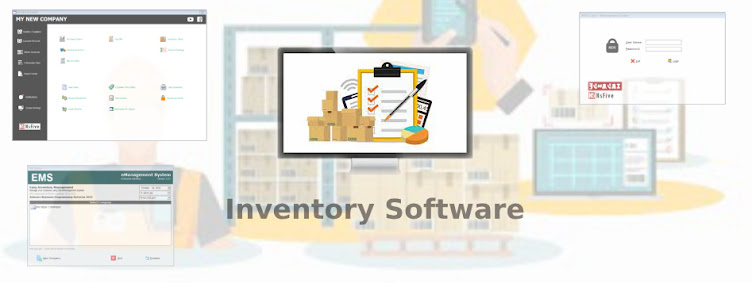
Showing posts with label Connection Error. Show all posts
Showing posts with label Connection Error. Show all posts
Tuesday, May 15, 2012

Thursday, January 12, 2012
EMS Installation Guide
EMS and xPOS Installation guide
1. Database Server Installation (You will need to Install the Database Server First) contact Tech support or read the guide on how to install and configure the Database Server.
2. Considering that your Administrator or technical support already installed and configured the Database Server. you can now proceed to the installation and configuration of EMS and xPOS.
If your Seller has given you a CD you can find all files needed on your CD.
or you can download it here:
Download: mysql-connector-odbc-5.1.8-win32
If you just want to try the Fully Functional Demo version
Download Demo Package:
If you have purchased the Full Version of EMS and xPOS then use it to install.
contact us if you want to download the new version or you have lost your copy of the installer, we may need to verify your license on our clients list.
E-mal: config_error@yahoo.com
1. Database Server Installation (You will need to Install the Database Server First) contact Tech support or read the guide on how to install and configure the Database Server.
2. Considering that your Administrator or technical support already installed and configured the Database Server. you can now proceed to the installation and configuration of EMS and xPOS.
If your Seller has given you a CD you can find all files needed on your CD.
or you can download it here:
Download: mysql-connector-odbc-5.1.8-win32
If you just want to try the Fully Functional Demo version
Download Demo Package:
If you have purchased the Full Version of EMS and xPOS then use it to install.
contact us if you want to download the new version or you have lost your copy of the installer, we may need to verify your license on our clients list.
E-mal: config_error@yahoo.com
Thursday, December 8, 2011
EMS Connection Error

How to fix this error:
1.) Make sure you are connected to your Local Area Network (check if Network Card is enabled)
2.) Make sure you can ping your MySQL Data Server
Click your Start Menu and type "CMD" on the Search Files/Run

then type
ping 192.168.0.101 (EMS Data Server)

If everything is OK, you should see a Reply from the Data Server.
In this case we are using a class C IP Address for our Local Area Network and 192.168.0.101 is the IP address of our MySql Data Server.
Note: you can change the Data Server IP address to anything if you know what you are doing. Just make sure all clients are on the same network and have the same subnetmask and can connect with each other.
3.) Open your EMS "config.ini" file located in the EMS installation Folder. Edit the Details in the file such as the Server (IP Address of the EMS Data Server), Username (UID), and Password (PWD). Make sure all details are entered correctly. "Please reffer on MySQL GUI TOOLS on how to add users into MySQL Server"

4.) Go to your Control Panel, Administrative Tools, and click on ODBC

You will also need to set ODBC Data Source. Select the System DSN tab and click configure.

Enter the Details such as the TCP/IP Server( in this case enter the IP 192.168.0.101 if you are using 192.168.0.101 as your MySQL Data Server IP) also enter the Username and Password.
Remember: Administrator should add the Username and Password for each client on the MySQL Server. This is needed in order for EMS to connect.
Click on Test button to test the connection.
5.) If the Connection Error is still Not Resolved, check your Firewall settings. You can disable your firewall or you can just open the following ports.
Port 3306 and grant full access to EMS.This goes same way with your MySQL Data Server. You should also allow the MySQL from your Firewall.
Subscribe to:
Posts (Atom)